How I Handle My Finances
After recently moving out of my parents house, I have accrued quite the amount of expenses. Rent, utilities, car insurance, medical bills, credit cards, and other miscellaneous payments. This can be extremely anxiety provoking, but it is as simple as laying out all of your payments and your income side by side and realizing what it is you have to do to make it work.
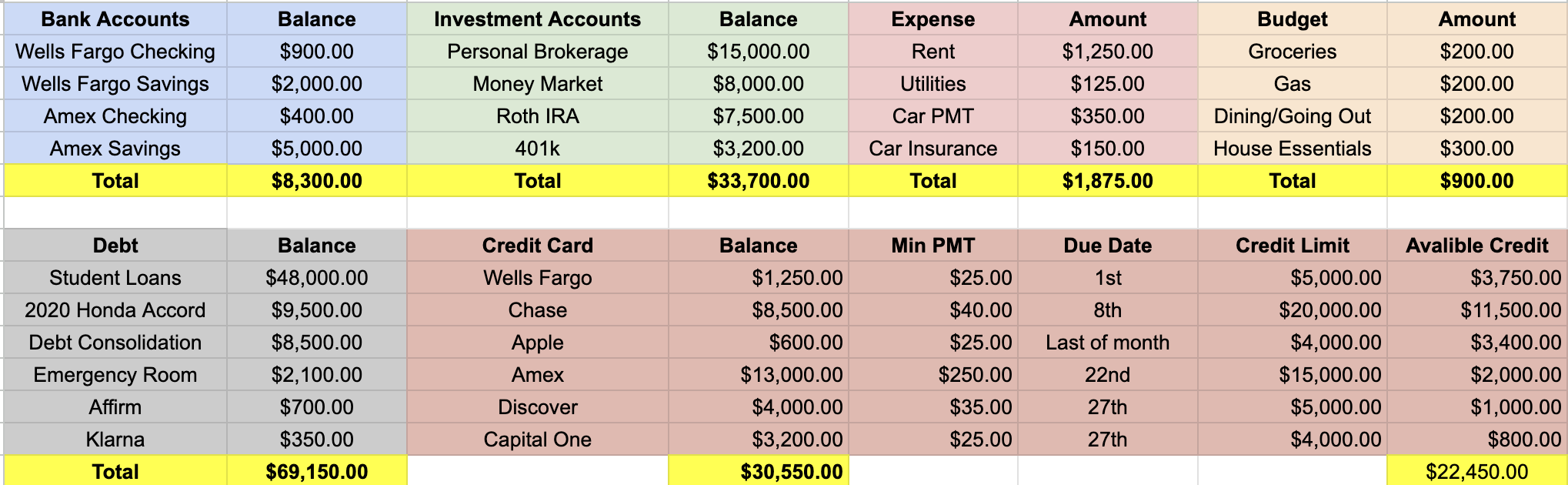
I am pretty old school when it comes to tracking my expenses. I have so many different bank accounts and credit cards which can be extremely overwhelming. I like to use either my notes app or an excel spreadsheet to keep track of everything so I know what payments are coming up, how much money I have to my name, and how much money I need to make by a certain time. Let me walk you through what I do.
Write down either on a piece of paper (very old-school but it does the job) or in your notes app on your phone all of the recurring expenses you have. List the $ amount, the name of the expense, and the day of the month it is due. List all of these in order of the day they are due each month, I have found this very useful. Remember, this is not some revolutionary idea, this is simply one of the first small steps that anyone can do to reduce their financial anxiety.
Add up all of your monthly expenses. If this exceeds your income, consider removing some subscriptions. Trust me, you can live without Netflix, Amazon Prime, etc.
If you are swimming in debt payments, whether thats credit cards, medical bills, personal loans, etc., consider getting a debt consolidation loan. Click here to learn more about this.
List out all of your bank accounts. Your checking, savings, cash, anywhere where money is stored. It is a good idea to know how much money you have. If you have heard people say “I don’t even want to look at my bank account”, this is anxiety. Don’t hide from the situation, that is how the lingers and inevitably gets worse.
List out all of your debts. I recommend a separate list for credit cards; that is what I do.
After you have completed these steps, you are one step closer to having a control on your finances. One special tip I have that I do is I put all of my fixed expenses in my Google Calendar. This way, I can be reminded of them when checking what I have to do each day. I would like to reiterate that these tips are not supposed to be revolutionary. This is designed for people who don’t know where to start.
Below is a downloadable Google Sheets template where you can edit and customize it to match your personal fiannces.
Click the “Download Template” button above
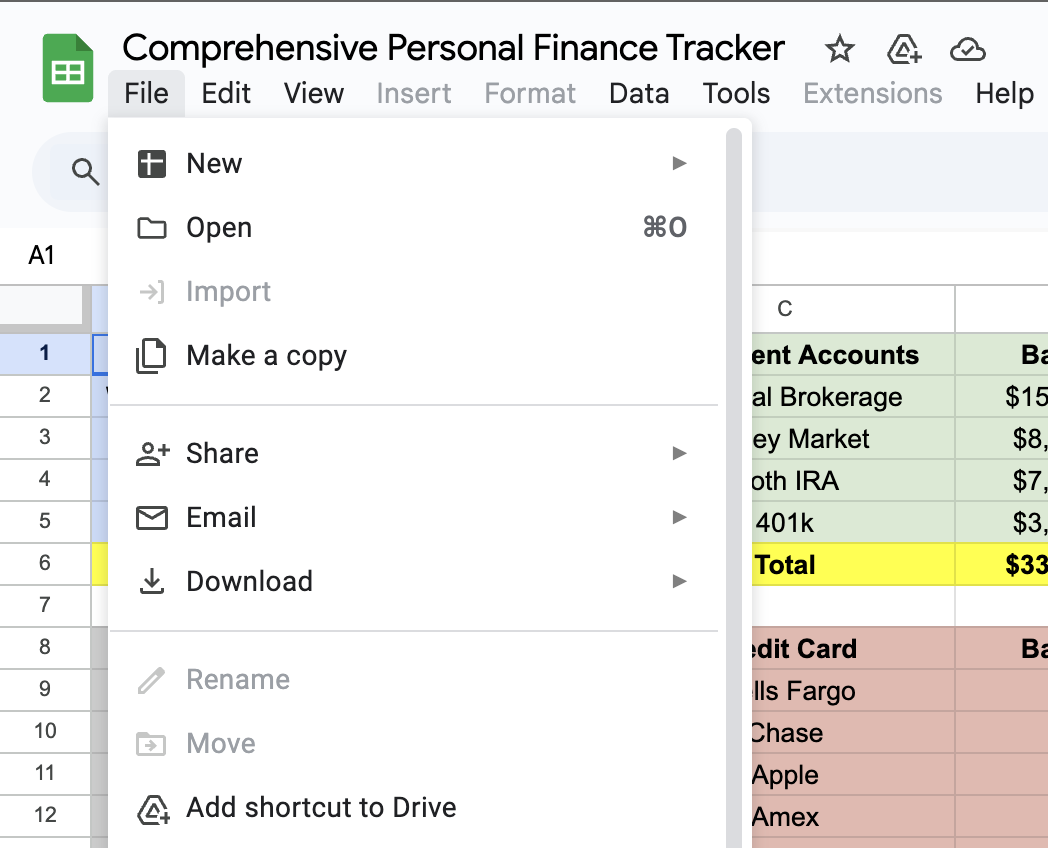
If you would like to edit on Google Sheets —> in the upper left corner click “file” —> “make a copy” then you can name your document whatever you would like and it will save in your Google Drive account.
If you would like to edit on Excel —> in the upper left corner click “file” —> over over download —> click “Microsoft Excel”
Or use this template as inspiration to create your own :)
Having all of your personal finances together in one spot really makes a huge difference. You will feel more at ease that you at the very minimum, know where you are at. The next step is a page to keep track of your variable expenses to get an idea on where all of your money is really going each month.
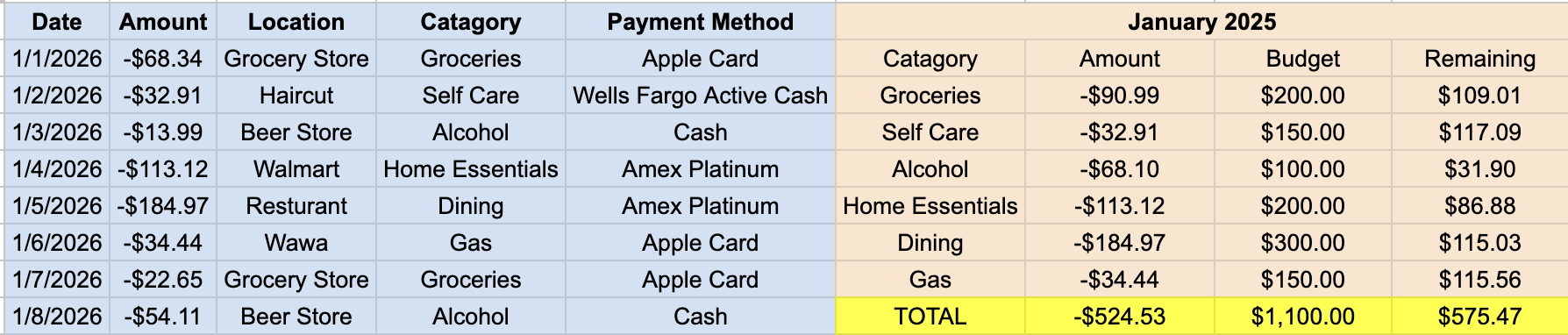
The idea here is similar, but everytime you make purchase, you will add it into the document. I recommend, when on the go, to simply write down what you just spent money on and the amount. You can be ad detailed or as vague as you would like. I reccomend detail, becasue this will give you the most accurate representation of where you are spending your money. This is the first and MOST important step to cut down on unnecessary spending and create a reasonable budget each month.
Below is another Google Sheets where you can follow the same steps to use as before.
Click the “Download Template” button above
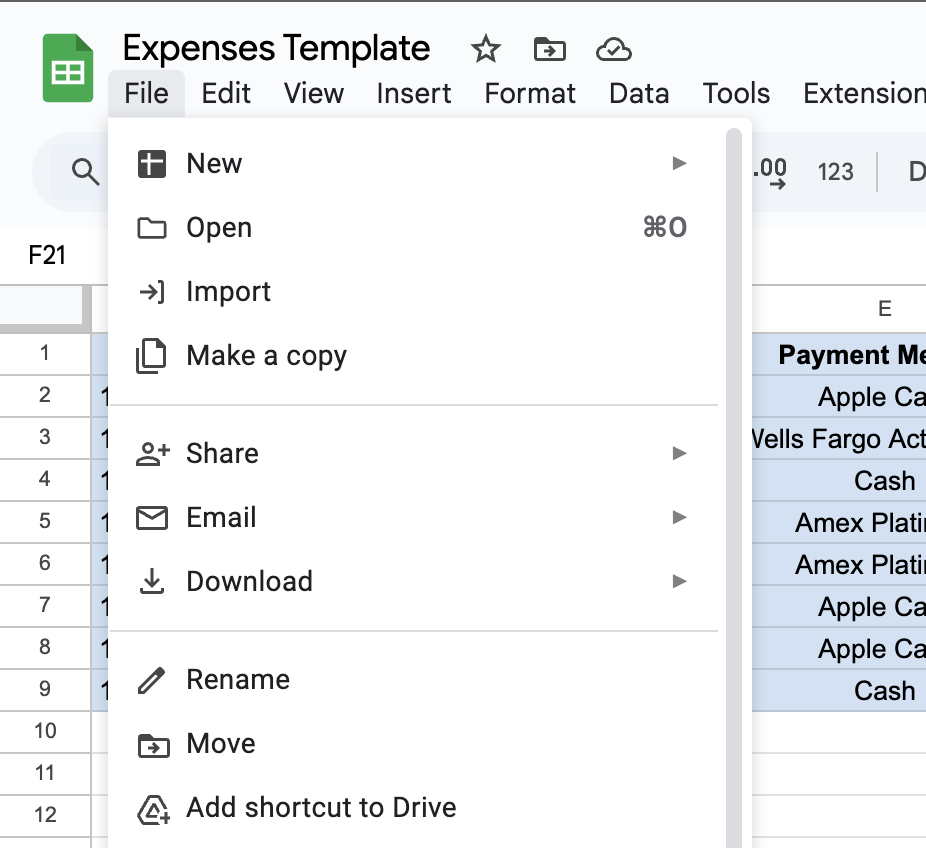
If you would like to edit on Google Sheets —> in the upper left corner click “file” —> “make a copy” then you can name your document whatever you would like and it will save in your Google Drive account.
If you would like to edit on Excel —> in the upper left corner click “file” —> over over download —> click “Microsoft Excel”
Or use this template as inspiration to create your own :)
